How to Use Apple Icon Composer (Step-by-Step) | IconCreator
How to Use Icon Composer: Step-by-Step Guide
How to use Apple's Icon Composer: open it from Xcode, import SVG or PNG layers, organize up to four groups, set Liquid Glass, preview dark and mono modes, and add the .icon file to your Xcode project.
·8 min read
Icon Composer turns flat layers from your design tool into one Liquid Glass app icon file.
Icon Composer is Apple's free app for building layered Liquid Glass app icons for iPhone, iPad, Mac and Apple Watch. You draw the layers in your usual design tool, stack them in Icon Composer, adjust the glass effects, and save one file that Xcode turns into every icon size and appearance.
Icon Composer in 7 Steps
1. Design your icon in layers on a 1024×1024 canvas (1088×1088 for Apple Watch).
2. Export each layer as SVG, or PNG for raster art.
3. Open Icon Composer from Xcode > Open Developer Tool > Icon Composer.
4. Drag the files into the sidebar and sort them into up to four groups.
5. Set the background, fills and Liquid Glass effects in the Style inspector.
6. Preview Default, Dark and Mono (clear and tinted) appearances.
7. Drag the saved file into your Xcode project and match the App Icon name.
Where to Get Icon Composer
Icon Composer comes with Xcode. Open it from the menu: Xcode > Open Developer Tool > Icon Composer. If you don't use Xcode, download it on its own from Apple's developer downloads page (search "Icon Composer"). The current version needs macOS Tahoe 26.4 or later.
Step 1: Prepare Your Layers
Design the icon in Figma, Sketch, Illustrator or any vector editor. Apple offers app icon templates with the current grid and canvas size; otherwise set the canvas yourself:
1024×1024 px — iPhone, iPad and Mac
1088×1088 px — Apple Watch
Split the artwork into the pieces you want at different depths, back to front. Name the layers with numbers, such as 01-background-shape, 02-symbol, 03-highlight, so they stay in order after import.
Leave these out of your design file
• Background colors and gradients — you set them in Icon Composer
• Shadows, blurs, glows and shine — Icon Composer adds them
• Opacity and translucency — adjust them later while previewing
• Rounded corners or a mask — the system crops the icon itself
• Live text — convert it to outlines, because SVG doesn't keep fonts
Export every layer as SVG where possible so it stays sharp at every size. Use PNG for raster artwork, mesh gradients or SVG features Icon Composer can't read. Don't export the canvas mask. Put the files for each group in its own folder if you want Icon Composer to create the groups for you.
Step 3: Create Your Icon Composer File
A new file opens with a default icon on a solid background. Save it straight away with File > Save and give it the name you want in Xcode, usually AppIcon.
The window has three parts: the sidebar on the left holds groups and layers, the canvas in the middle shows the preview, and the inspectors on the right change how the icon looks. Platform and appearance buttons sit under the canvas; grid and background controls sit above it.
If your app is iPhone-only, click the Document button in the top-right corner, choose iOS Only and turn watchOS off. The Mac and Watch controls disappear so you only see what you need.
Step 4: Import and Group Your Layers
Drag your SVG or PNG files from Finder into the sidebar. Each file becomes a layer. Drag in folders instead and each folder becomes a group. You can also click the + button under the sidebar and choose New Image.
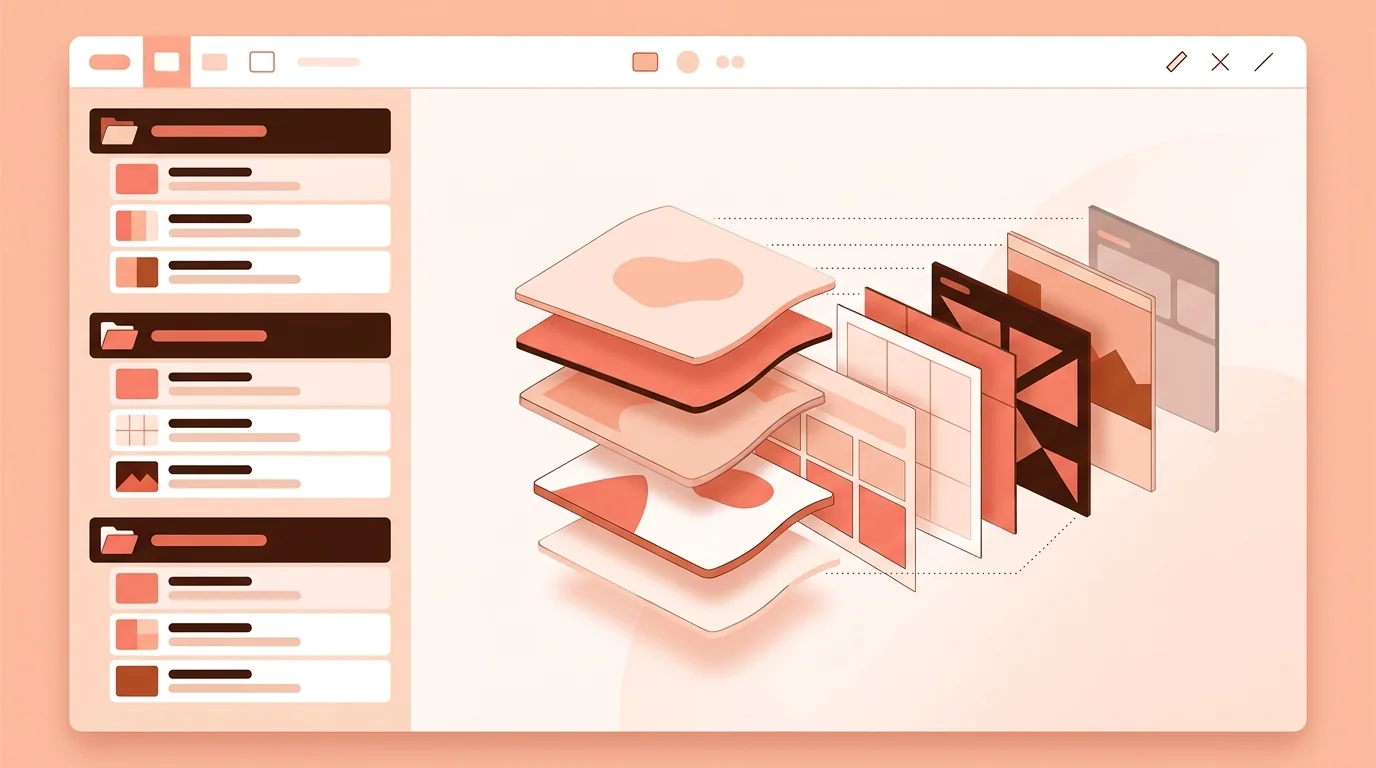
Organize everything into a maximum of four groups. Groups are the depth levels the system renders, from the bottom of the sidebar to the top, and they let you apply one setting to several layers at once. Create a group with + > New Group, drag layers into it, and drag up or down to change the order.
To swap a layer's artwork later, select the layer and choose Replace from the Image menu under Composition in the Style inspector.
Up to four groups become the depth levels of the icon.
Step 5: Set the Background and Colors
Click the icon name at the top of the sidebar to edit the background. In the Style inspector, set Color to All, then choose Fill: Solid or Gradient. A gradient gets two color wells for the From and To colors, each with its own opacity. Solid colors and gradients cover most icons, so you rarely need to import a background image.
The same Fill menu works for any layer: Automatic keeps the file's colors, or choose None, Solid or Gradient. Use Opacity under Color to let layers behind show through.
Step 6: Adjust Liquid Glass
Icon Composer adds Liquid Glass to every imported layer automatically. Select a group to fine-tune it:
• Mode — Individual applies effects to each layer; Combined treats the group as one object
• Specular — Automatic, Inside, Outside or Off for the edge highlights
• Blur, Translucency and Shadow — how glassy and lifted the group looks
• Refraction — lets the layer bend the color and shape behind it
To switch the glass off for one layer, select it and turn off Effects under Liquid Glass. Start with the defaults and change only what looks wrong in the preview; heavy glass makes small icons harder to read.
Position and scale
Drag artwork on the canvas to move it, or type exact x, y and scale values under Composition > Layout. Turn on the grid from the toolbar to line shapes up with Apple's icon grid.
Step 7: Preview Dark, Clear and Tinted Modes
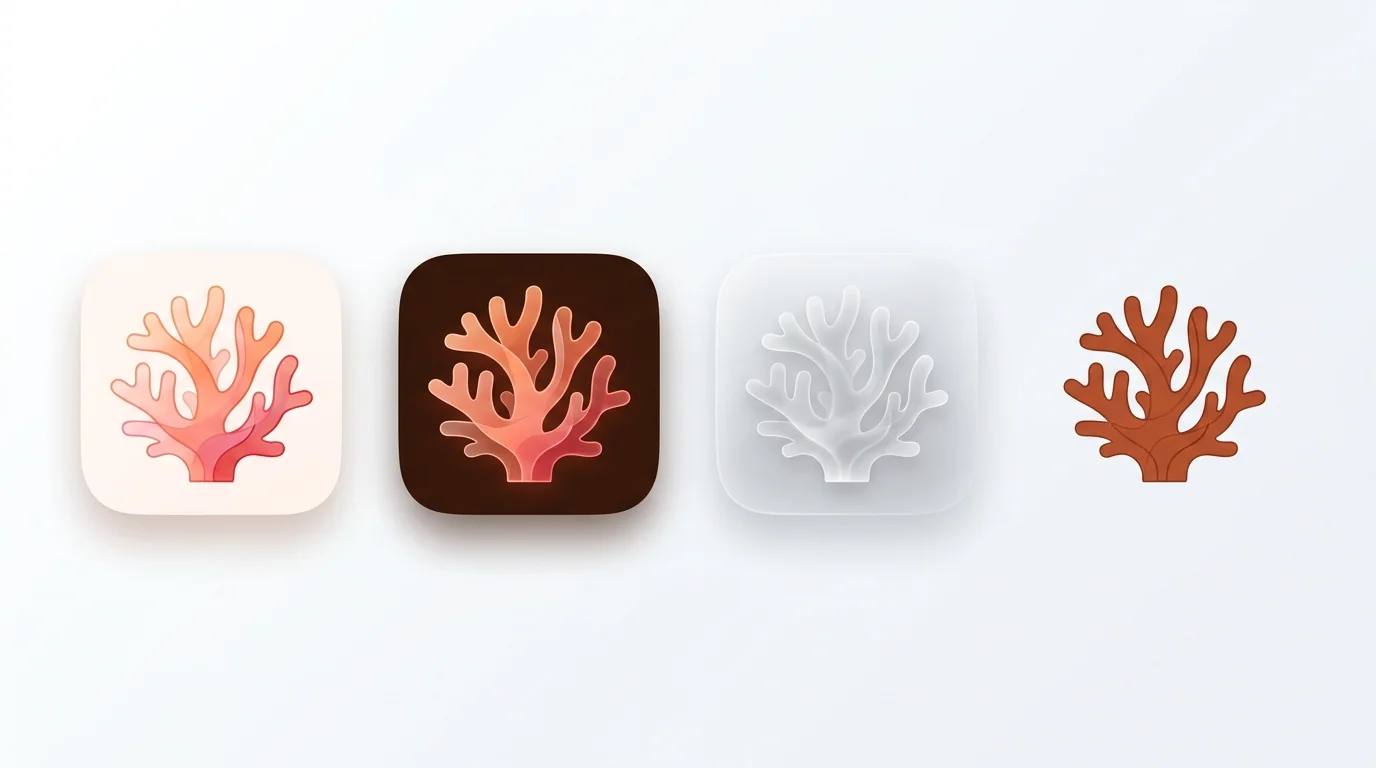
Under the canvas, pick a platform on the left and an appearance on the right: Default, Dark or Mono. For clear and tinted versions, select Mono, click Options, choose Light or Dark and toggle Tinted. Apple Watch has no appearance modes.
Use the toolbar above the canvas to test the icon on different wallpapers, add your own background image, view specific icon sizes and compare the current and previous system rendering. These controls only change the preview, not the icon.
Change one appearance or platform only
Select the appearance in the canvas, then click the small icon next to any setting in the Style inspector and choose Vary for that appearance or platform. For example, make the symbol white only in Dark mode. Choose All from the Color, Liquid Glass or Composition menu to see every custom setting in one place, and click the X next to one to remove it.
Check every appearance before handing the icon to Xcode.
Step 8: Add the Icon to Xcode
1. Drag the Icon Composer file from Finder into the Project navigator.
2. Select your app target and open the General tab.
3. Under App Icons and Launch Screen, make the App Icon field match the file name without the extension, such as AppIcon.
4. Build and run to see it in Simulator or on a device.
The Icon Composer file replaces your old AppIcon asset catalog. If your app still supports older iOS or macOS versions, Xcode automatically creates flat icon images for them at build time. To keep a different icon on older versions, stay with the asset catalog instead.
To edit an icon that's already in your project, select it in the Project navigator and click Open with Icon Composer under the preview.
Export a Flat Image for Marketing
Icon Composer can also export a flattened image of the icon for your website, App Store marketing or presentations. Keep the layered file as the real app icon; the flat export is only for places outside the app.
Common Icon Composer Problems
• Text looks wrong or missing — convert it to outlines before exporting SVG
• Edges look jagged — you exported a pre-masked shape; export square layers
• Double shadows or shine — remove effects from your design file
• Icon looks flat — your artwork is one layer; split it into 2–4 depth groups
• Details vanish in Mono — mark the key shapes for mono instead of relying on color
• Xcode still shows the old icon — the App Icon field doesn't match the file name