How you change app icons on Android depends on your phone. Pixel and most phones can turn on themed icons. Samsung phones have icon themes. Any Android phone can use a custom launcher with icon packs, or a shortcut app to set your own image for one app.
Quick Answer by Method
• Themed icons — one color for all icons, built in (Pixel and many phones) • Samsung Galaxy Themes — download icon sets, built in • Launcher + icon pack — change any icon, works on every Android phone • Shortcut maker app — use your own image for one app
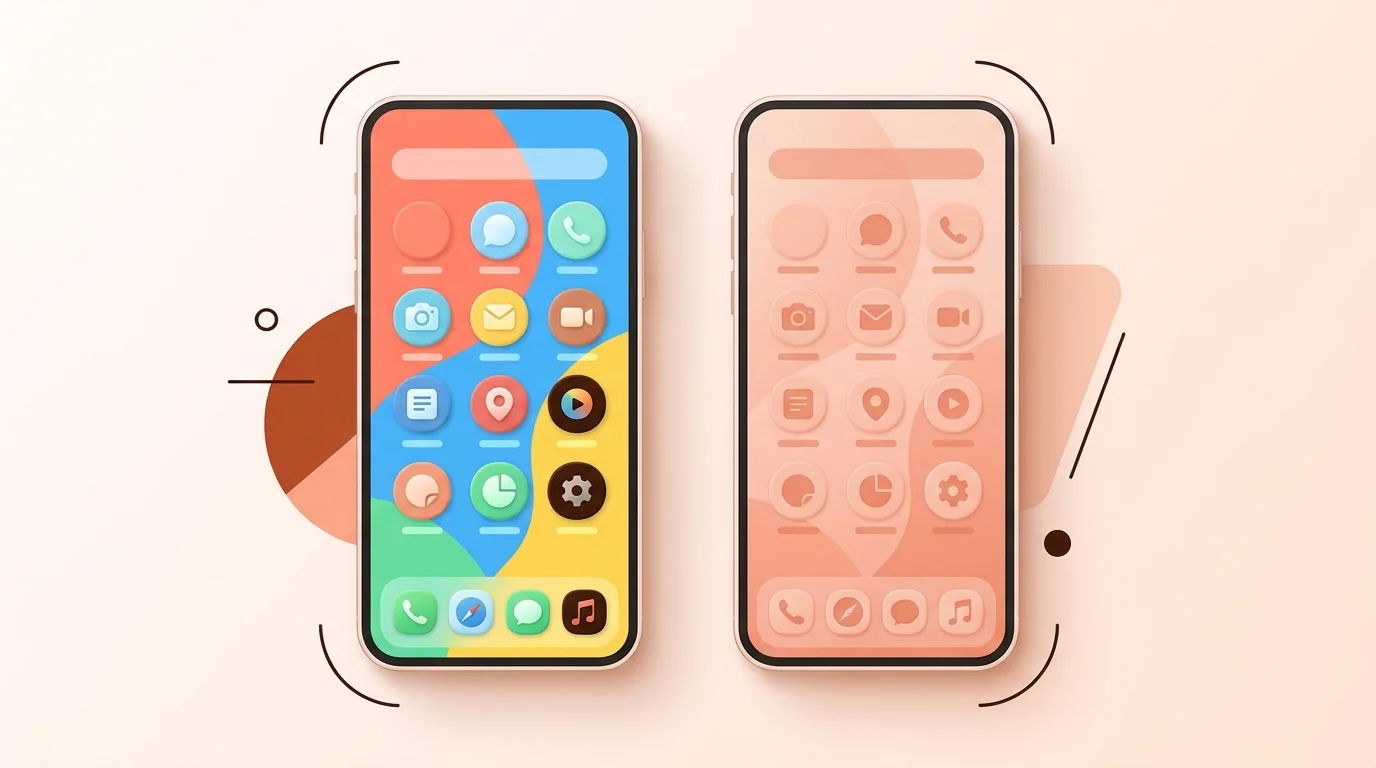
Turn On Themed Icons (Pixel)
1. Press and hold an empty part of the home screen. 2. Tap Wallpaper & style. 3. Turn on Themed icons.
Supported icons switch to one color that matches your wallpaper. Apps that don't provide a themed icon keep their normal look, and you can't pick shapes or images this way.
Change Icons on Samsung
1. Open Settings > Themes (Galaxy Themes). 2. Tap Icons and browse free or paid icon sets. 3. Download one and tap Apply.
Icon themes mainly restyle Samsung's own and popular apps; other apps may keep their original icons.
Use a Launcher and Icon Pack (Any Android)
A launcher replaces your home screen and lets you change every icon. Lawnchair (free, Pixel-like), Niagara and Smart Launcher are popular choices. Nova Launcher stopped development in 2025, so it no longer gets updates.