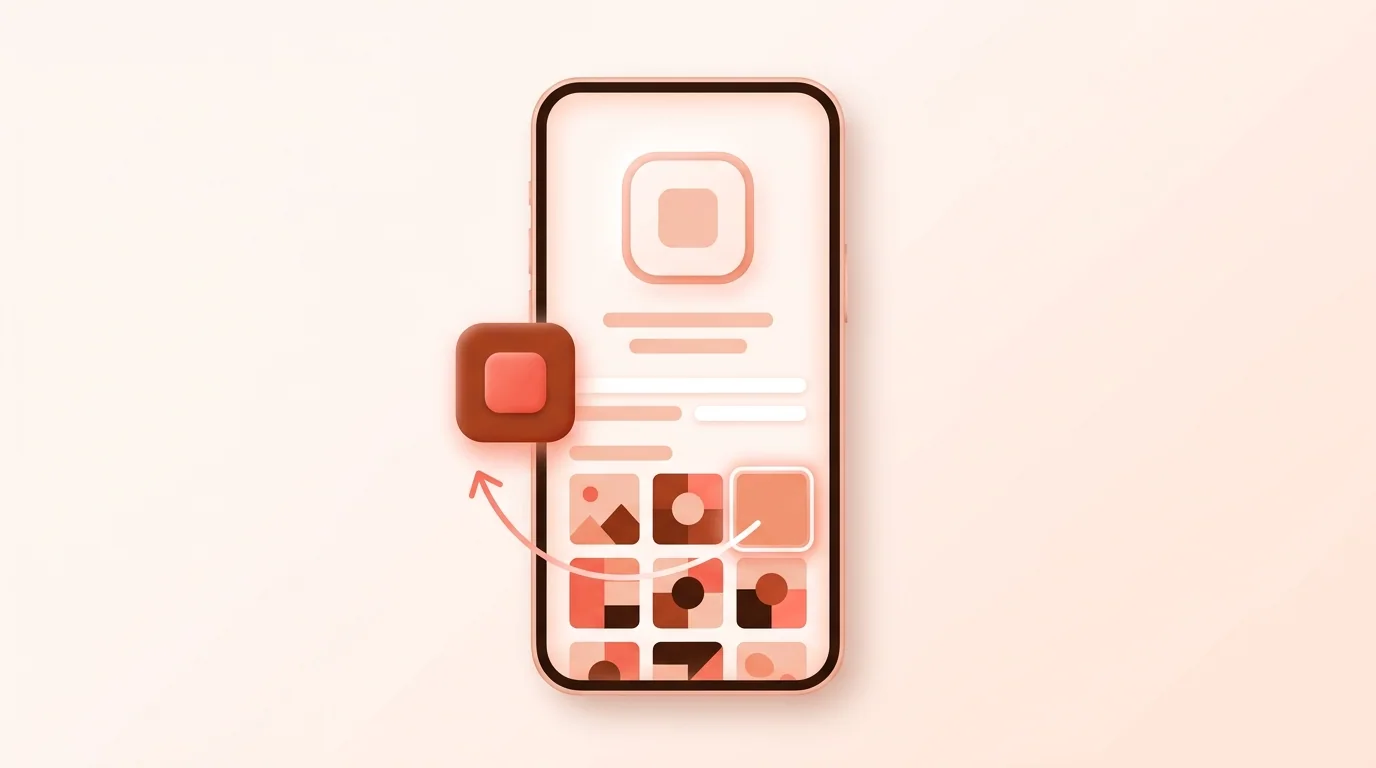
There are two ways to change app icons on iPhone. To use your own image for one app, make a home screen shortcut with the Shortcuts app. To restyle every icon at once, use the Home Screen's Customize menu for Dark, Clear or Tinted icons. Both are free and built in; no jailbreak or extra app needed.
Change One App Icon with Your Own Image
You'll need the image first: a square PNG or JPG saved in Photos or Files. Then:
1. Open the Shortcuts app and tap + to make a new shortcut. 2. Search for the Open App action, add it, and pick the app you want to change. 3. Open the shortcut's details (the info button) and tap Add to Home Screen. 4. Tap the icon under Home Screen Name and Icon, then Choose Photo (or Choose File, or Take Photo). 5. Tap the name to type the app's name. 6. Tap Add. The new icon appears on your Home Screen.
Hide the original icon
Press and hold the original app icon, tap Remove App, then Remove from Home Screen. The app stays installed and can still be found in the App Library and search; your custom icon opens it.
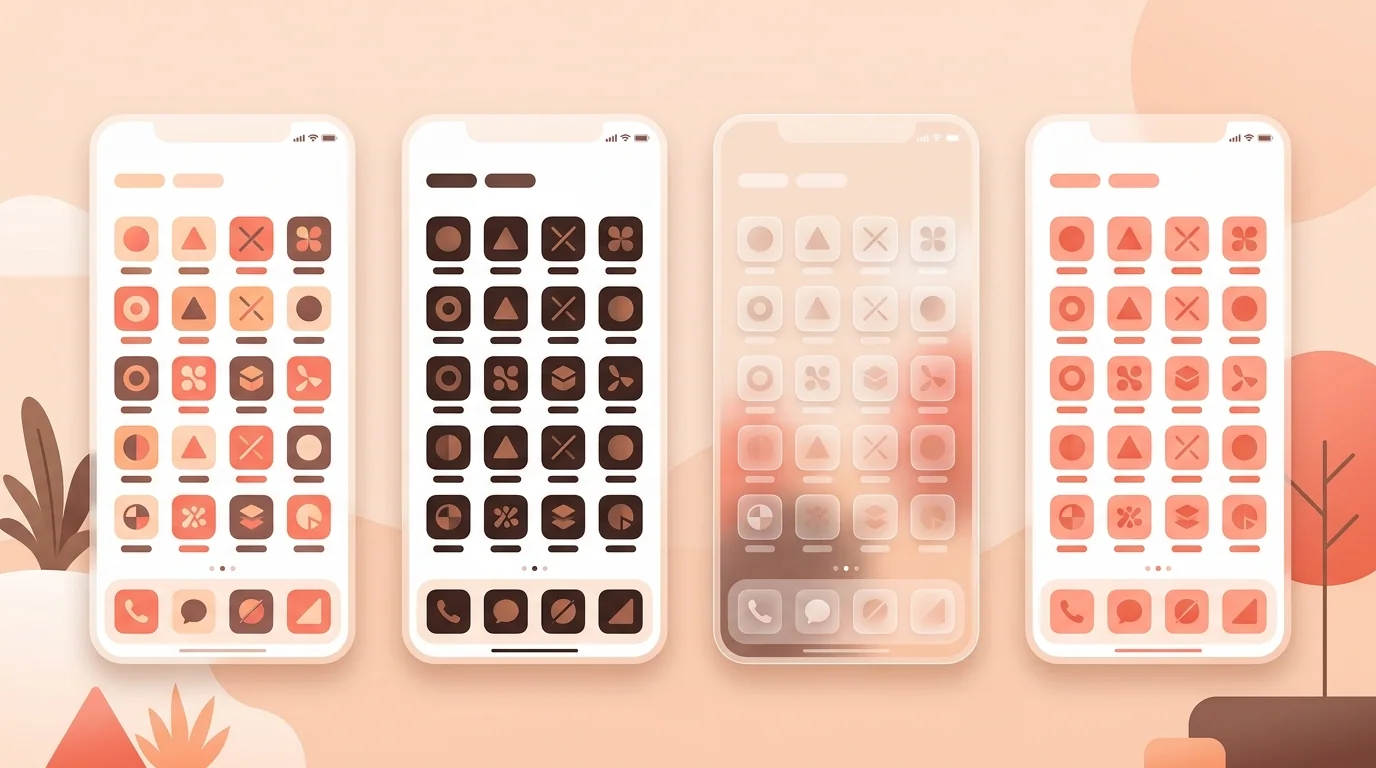
Restyle All Icons: Dark, Clear and Tinted
1. Press and hold an empty part of the Home Screen until icons jiggle. 2. Tap Edit, then Customize. 3. Pick Default, Dark, Clear or Tinted. Tinted lets you pick any color, or match your wallpaper with the eyedropper. 4. Choose small or large icons, then tap the Home Screen to finish.
This changes every app at once using each app's own design. It can't use your own images; for that, use the Shortcuts method above.
Make Icons That Look Good Together
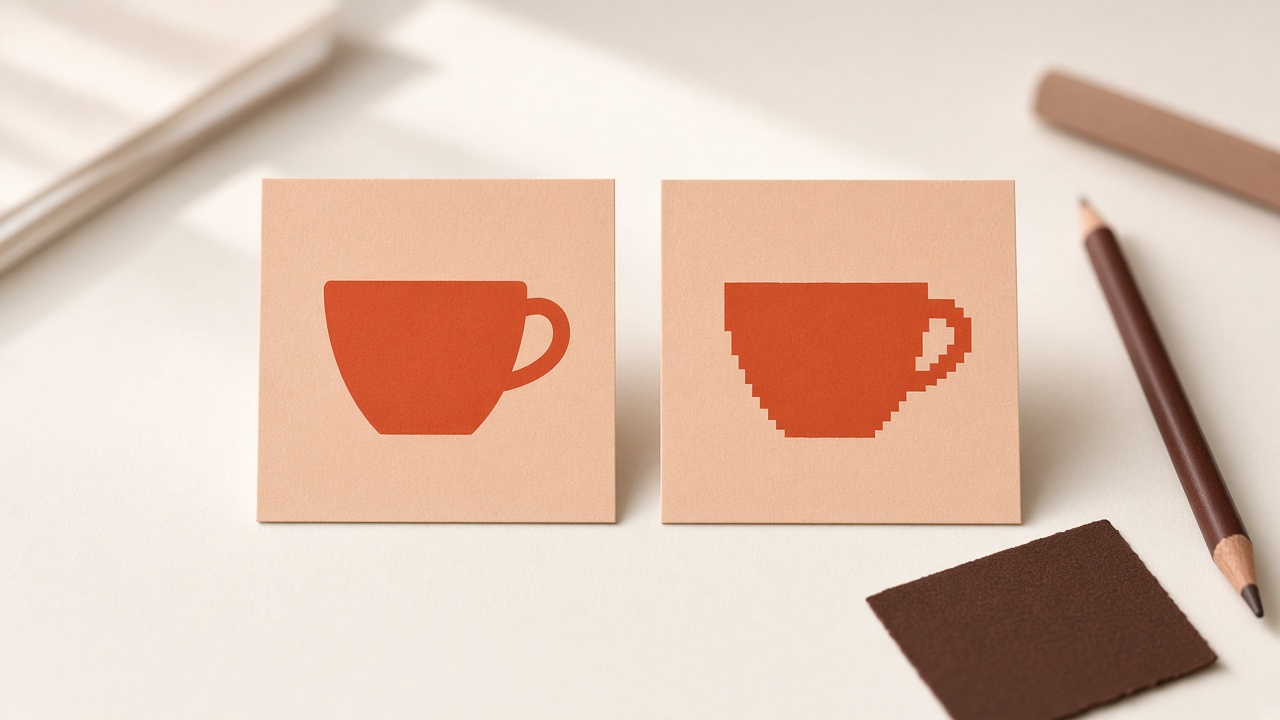
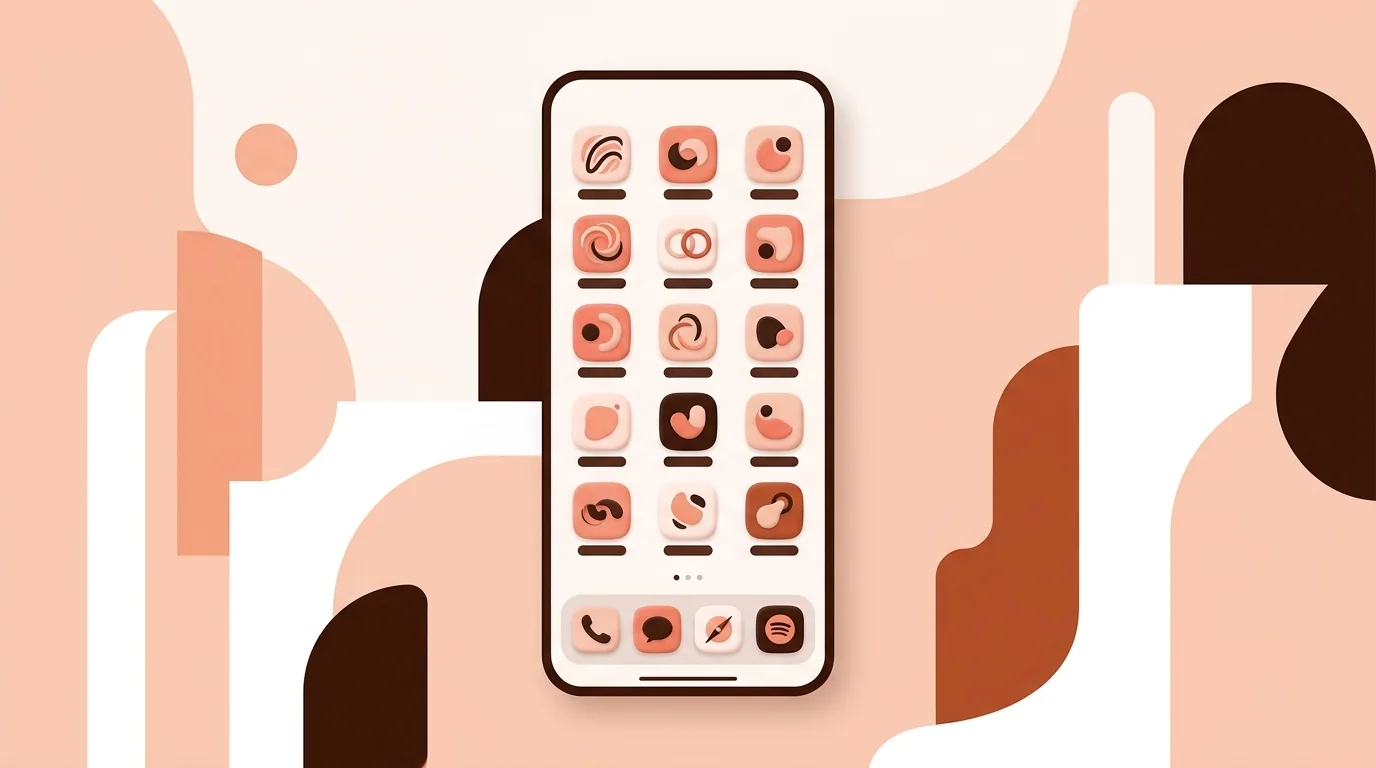
• Use square images at least 180×180 px; iOS rounds the corners for you • Keep one style: same background color, line weight and padding • Simple symbols read better at home screen size than photos • Save the whole set in one album so it's quick to pick each image
Want a matching set fast? Generate a consistent icon pack from one prompt with IconCreator, or check how your icons look on a real home screen with App Icon Previewer.
Things to Know
• Notification badges (red counts) don't show on shortcut icons • Some iOS versions briefly show a Shortcuts banner when the app opens • Custom icons only change your Home Screen; App Library and Settings keep the original • Deleting the shortcut doesn't delete the app
Change App Icons on iPhone FAQ
Can you change app icons on iPhone?
Yes. Make a shortcut in the Shortcuts app that opens the app, then set any photo as its Home Screen icon.
Is it free?
Yes. Shortcuts is built into iOS. You don't need a paid app or a jailbreak.
How do I change all icons at once?
Press and hold the Home Screen, tap Edit > Customize, and choose Dark, Clear or Tinted.
Why don't badges show on my custom icons?
Custom icons are shortcuts, not the app itself, so iOS doesn't show notification counts on them.
What size should custom icon images be?
Square, at least 180×180 pixels. iOS adds the rounded corners.
How do I go back to the original icon?
Delete the shortcut and add the app back from the App Library.