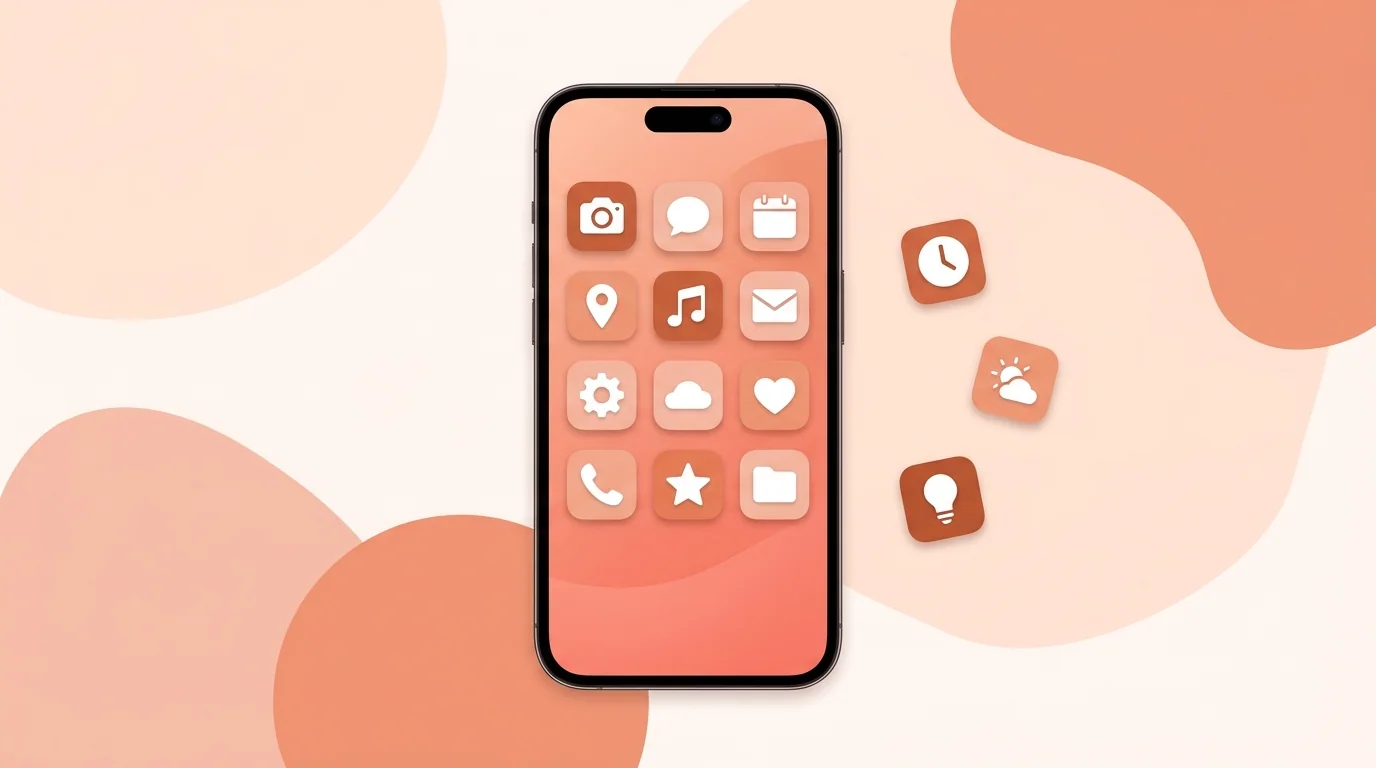
To make aesthetic app icons on iPhone, choose one visual style, create a square image for each app, and apply each image with the Shortcuts app. It's free and doesn't need a jailbreak. Start with your Dock and first Home Screen page, since each icon takes about a minute to set up.
Step 1: Choose an Aesthetic
Pick one look and use it for every icon. Your wallpaper is a good place to get the colors from. • Minimal: thin line symbols on white or beige • Soft pastel: rounded symbols on muted pinks, blues or greens • Dark: light symbols on black or deep gray • Retro: pixel-style symbols and bold, limited colors
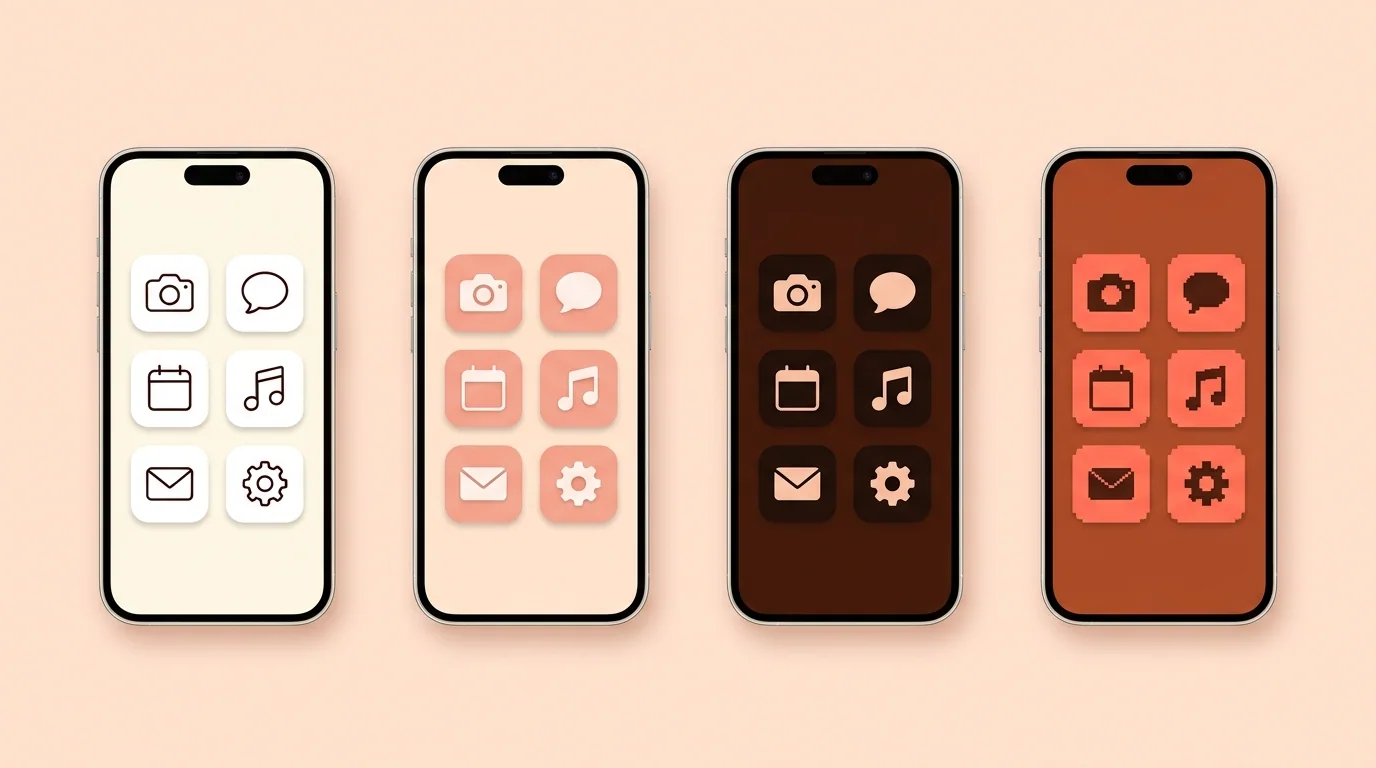
Step 2: Get a Matching Icon Set
• Generate a set with an AI icon generator, using the same style for every icon • Draw your own in a design app • Download a ready-made pack, and check that its license covers your use
Use square images of at least 180×180 px, and iOS will round the corners for you. Keep the same background, symbol weight and padding across the set. Then save everything to one album so each image is easy to find.
To see how your icons look on a Home Screen before you apply them, use App Icon Previewer.
Step 3: Apply Each Icon with Shortcuts
1. Open Shortcuts and tap + to create a shortcut. 2. Add the Open App action and choose the app. 3. Open the shortcut's details and tap Add to Home Screen. 4. Tap the icon, then Choose Photo, and select your image. 5. Type the app's name and tap Add. 6. Press and hold the original icon, then tap Remove App > Remove from Home Screen.
Removing the original icon doesn't delete the app. It stays in the App Library. For more detail, see How to Change App Icons on iPhone.
Step 4: Finish the Look
• Use a simple wallpaper with colors from your icons • Add a few widgets in the same colors • Keep fewer apps on your first page, and move the rest to the App Library • For a cleaner layout, press and hold the Home Screen, tap Edit > Customize, and choose large icons, which hide the app names
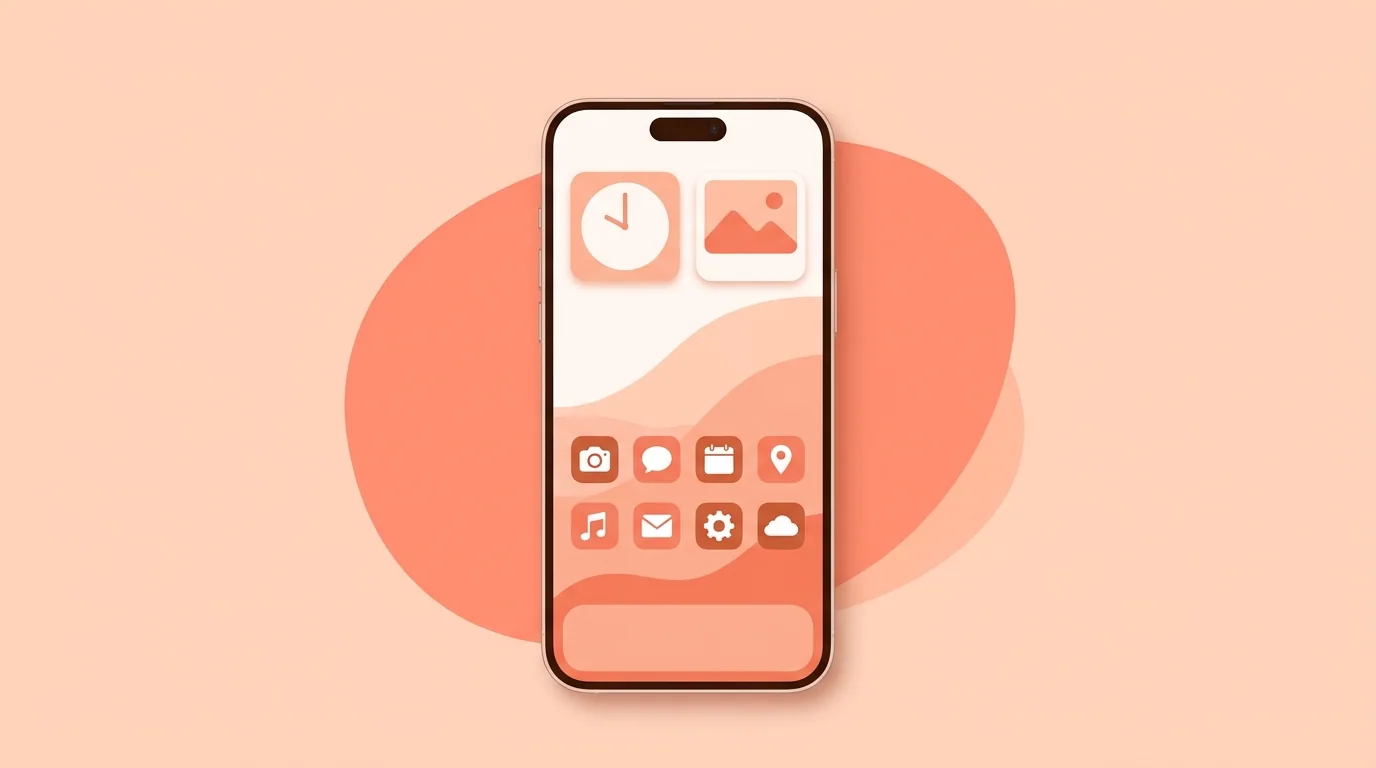
The Dark, Clear and Tinted options in Customize can affect how your icons look. If a custom icon doesn't look right, switch back to Default.
A Faster Option: Tint Every Icon
If you only want matching colors, you don't need custom images. Press and hold the Home Screen, tap Edit > Customize, choose Tinted, and pick a color. Every icon changes at once, but you can't change the symbols.
What to Expect from Custom Icons
• Notification badges don't show on shortcut icons • A small Shortcuts banner can appear when you open an app • The App Library and Settings still show the original icons • Deleting a shortcut doesn't delete the app
Aesthetic App Icons on iPhone FAQ
Can I get custom app icons on iPhone for free?
Yes. The Shortcuts app is built into iOS, and you can use any image you have the right to use.
Do I need a jailbreak or a third-party app?
No. Shortcuts handles it. You only need another app if you want help making or downloading the images.
What size should aesthetic app icons be?
Square and at least 180×180 pixels. iOS adds the rounded corners.
Can custom icons show notification badges?
No. Custom icons are shortcuts, not the apps themselves, so they don't show badge counts. Keep the original icon on your Home Screen for any app where you need them.
How do I go back to the original icons?
Delete the shortcuts, then add the original apps back from the App Library.