To make custom app icons on Android, create a square image for each app, then apply it with a shortcut maker app or a launcher that lets you edit icons. You don't need to root your phone. The new icon appears where you add it, and the app itself doesn't change.
Step 1: Create Your Icon Images
• Size: square, at least 192×192 px. 512×512 px leaves room for cropping. • Format: PNG. Use a transparent background if you want the wallpaper to show around the symbol. • Layout: one simple symbol in the center, with space around it.
You can draw icons in a design app, use your own photos, or generate a set with an AI icon generator. To resize finished images, use App Icon Resizer.
Make the Icons Match
A custom home screen looks best when every icon follows the same rules. Choose them before you start: • The same background color or texture • The same symbol weight, such as all outline or all solid • The same padding around each symbol
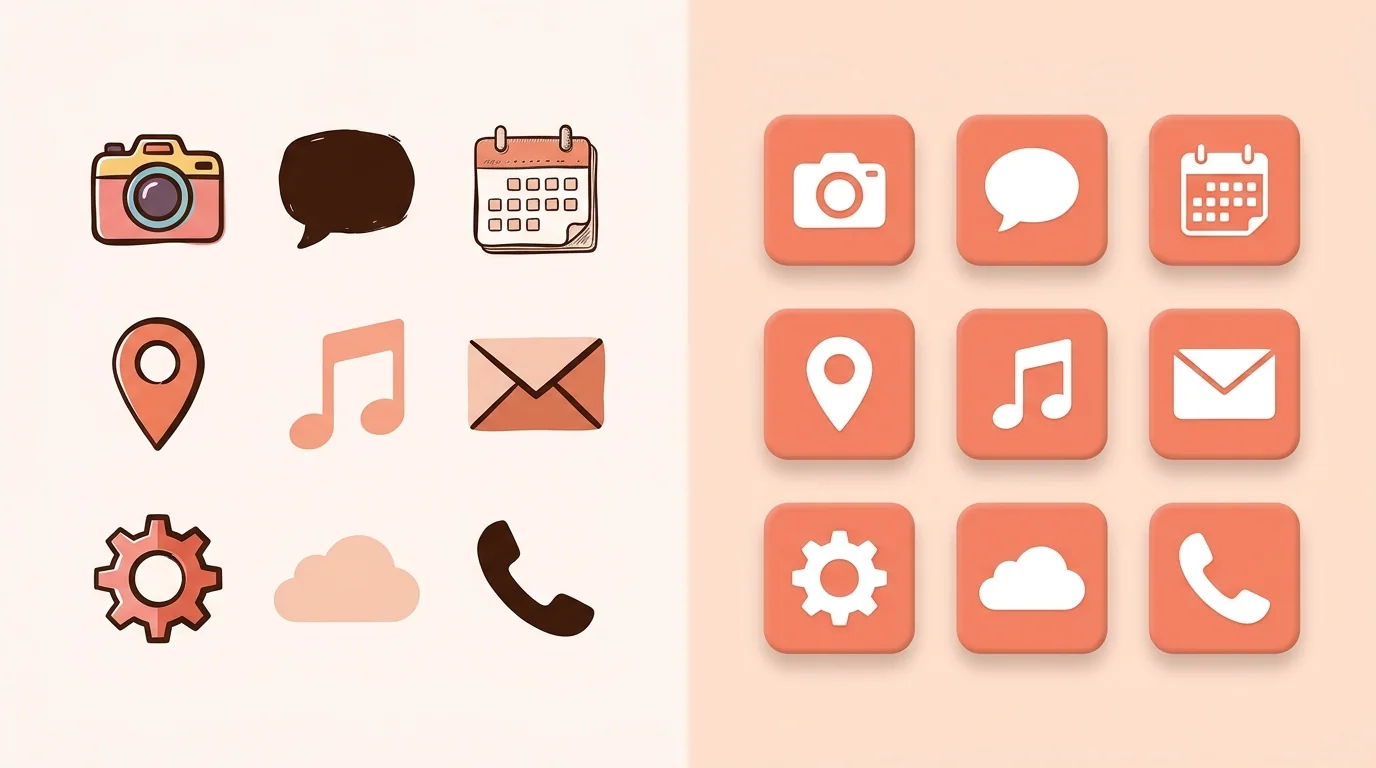
Launchers can crop icons into circles and other shapes, so keep the symbol away from the edges. To test your icon in different shapes, use Android Adaptive Icon Checker.
Step 2: Apply Icons with a Shortcut Maker App
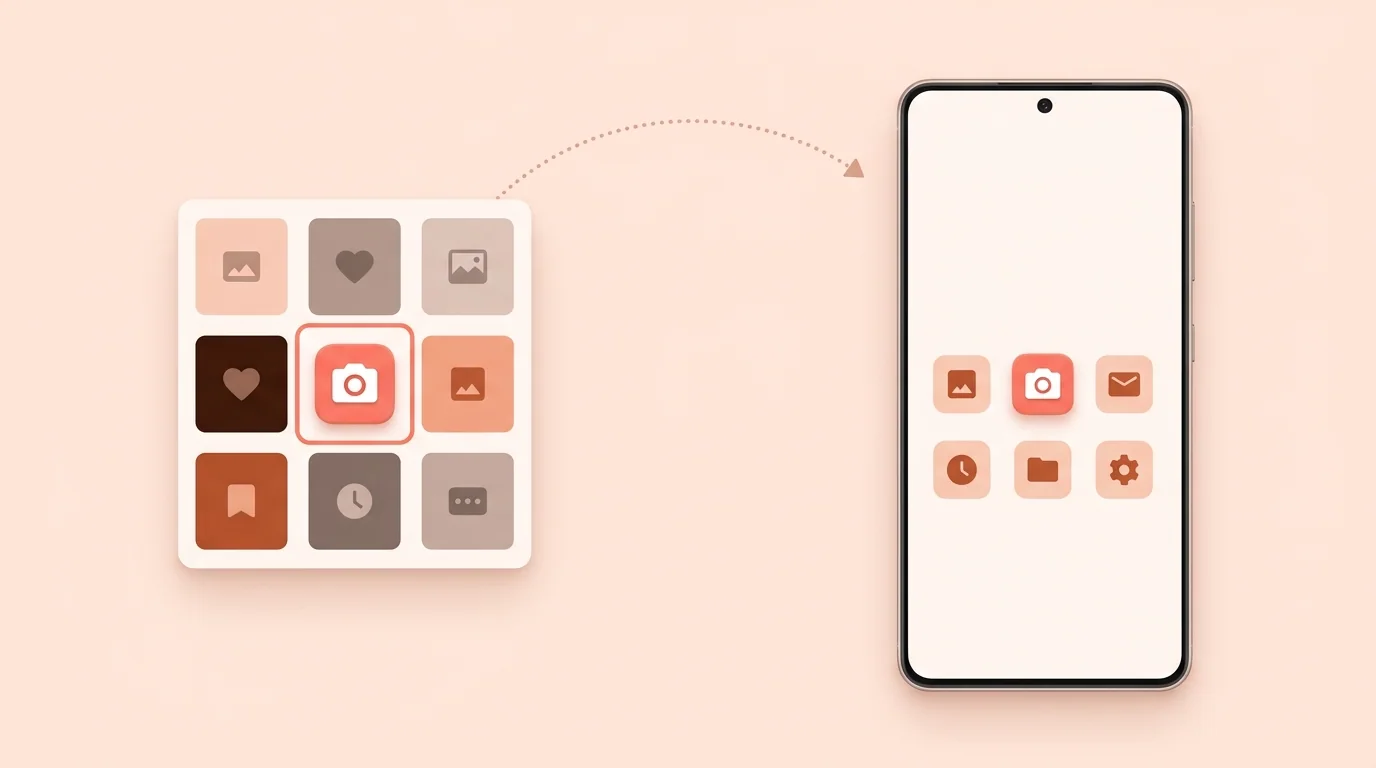
This is the easiest option because you keep your current home screen. Shortcut Maker is one popular app, and button names may differ in others. 1. Install a shortcut maker app from the Play Store. 2. Choose Apps, then pick the app you want to change. 3. Tap the icon and select your image from Gallery. 4. Create the shortcut and add it to your home screen. 5. Remove the original icon from the home screen. Don't uninstall the app.
Or Apply Icons with a Launcher
A launcher replaces your home screen. It suits you better if you plan to change many icons or want more control over the layout. Options vary by launcher, but the usual steps are: 1. Install a launcher and set it as your default home app. 2. Press and hold an app icon, then tap Edit. 3. Tap the icon and choose your image.
Not every launcher supports custom images, so check its features before you set it up. For icon packs and themed icons instead of your own images, see How to Change App Icons on Android. On Samsung, see How to Change App Icons on Samsung.
What Custom Icons Can't Change
• The original icon still appears in other places, such as Settings and notifications. • A shortcut app adds a new icon, so the app drawer keeps the original. • An app update can occasionally break a shortcut. If that happens, create it again.
Building Your Own Android App?
To change the icon inside your app, use Android Studio: right-click the app module, then choose New > Image Asset. For the required files and dimensions, see /android-app-icon-sizes.
Custom App Icons on Android FAQ
Can I make custom app icons on Android for free?
Yes. You can use your own images with a free shortcut maker app or launcher.
Do I need to root my phone?
No. Shortcut maker apps and launchers both work without root.
What size should a custom Android icon be?
Square and at least 192×192 pixels. 512×512 pixels leaves room for cropping.
Can I use a photo as an app icon?
Yes. Crop it to a square and keep the subject centered. Simple, high-contrast photos are easiest to read at small sizes.
Why does the app still show its old icon in notifications?
A shortcut or launcher changes the home screen icon, not the app itself. Other parts of Android can still show the original.